Best Devices to Stream the World Cup 2026 Without Any Lag
Published: June 6, 2026 · 9 min read
You have chosen to stream the World Cup 2026 instead of relying on traditional cable — smart decision. But the device you watch on matters just as much as the service you subscribe to. A weak streaming device with an underpowered processor will stutter, buffer, and freeze at the worst possible moments. A properly equipped device, on the other hand, delivers silky-smooth 4K football that makes you feel courtside at the stadium. Here is a device-by-device breakdown of the best options for the tournament, along with setup instructions for each.
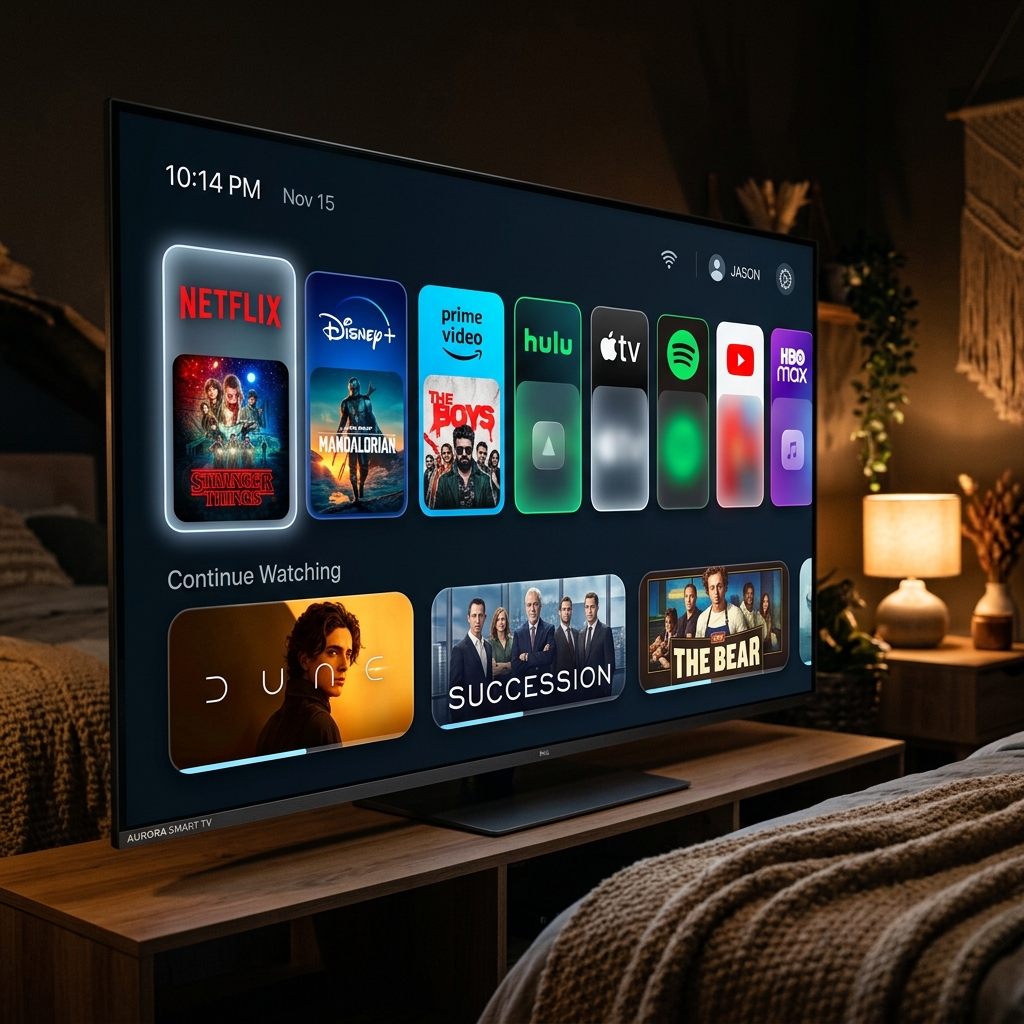
1. Smart TVs — The Living Room Powerhouse
Modern Smart TVs from Samsung, LG, Sony, and TCL are the most straightforward option for World Cup viewing. If your TV was manufactured after 2020, it almost certainly supports 4K resolution and has a built-in app store where you can download IPTV player applications like IPTV Smarters, TiviMate, or the native Smart IPTV app.
Setup: Open your TV's app store, search for your preferred IPTV player, install it, and enter the M3U URL or Xtream Codes credentials provided by EliteVision. Navigate to the sports channel category and you are live within minutes. For Samsung TVs running Tizen OS, Smart IPTV is a popular choice. LG's webOS supports similar apps through the LG Content Store.
Pro tip: Enable "Game Mode" or "Sports Mode" in your TV's picture settings. These modes reduce input lag and enhance motion handling — critical for fast-paced football where the camera tracks rapid ball movement across the pitch.
2. Amazon Fire Stick / Fire TV — Budget King
The Amazon Fire TV Stick 4K Max remains one of the best value propositions in streaming. At a fraction of the cost of a new Smart TV, it transforms any television with an HDMI port into a capable 4K streaming machine. The quad-core processor handles IPTV streams effortlessly, and the Wi-Fi 6E support ensures faster, more stable wireless connections than older devices.
Setup: From the Fire TV home screen, go to Settings → My Fire TV → Developer Options and enable "Apps from Unknown Sources." Download the Downloader app from the Amazon App Store, then use it to sideload your preferred IPTV player (TiviMate is highly recommended for its clean interface and EPG support). Enter your EliteVision credentials and start streaming.
Pro tip: If possible, use an Ethernet adapter (available for under $15) instead of Wi-Fi. The Fire Stick's compact size means its internal antenna can be blocked by the TV body, and a wired connection eliminates this variable entirely.
3. Apple TV 4K — Premium and Polished
Apple TV 4K is the gold standard for users already embedded in the Apple ecosystem. The A15 Bionic chip decodes 4K HDR streams with zero effort, and the tvOS interface is fluid and responsive. IPTV apps available on the App Store include IPTV Smarters and GSE Smart IPTV, both of which support Xtream Codes login.
Setup: Open the App Store on your Apple TV, download your chosen IPTV player, and enter your credentials. Apple TV also supports AirPlay, meaning you can cast streams from your iPhone or iPad to the big screen if you prefer browsing channels on a handheld device first.
Pro tip: Enable "Match Content" in Settings → Video and Audio. This feature automatically adjusts the output frame rate and dynamic range to match the stream, preventing judder and ensuring the smoothest possible motion for live football.
4. Google Chromecast with Google TV — Cast and Conquer
The Chromecast with Google TV runs a full Android TV operating system, which means it can install IPTV apps directly from the Google Play Store. TiviMate, IPTV Smarters Pro, and OTT Navigator are all available. The device supports 4K HDR at 60fps, which is the exact specification you need for broadcast football.
Setup: Connect the Chromecast to your TV via HDMI, complete the initial Google setup, open the Play Store, install your IPTV app, and log in with your EliteVision credentials. Alternatively, you can cast from your phone using the built-in Cast feature in many IPTV apps — start browsing on your phone, find the match, and tap the Cast icon to send it to the TV.
5. Android TV Boxes — Maximum Flexibility
Dedicated Android boxes like the NVIDIA Shield TV Pro sit at the top of the performance hierarchy. The Shield's Tegra X1+ processor handles 4K upscaling with AI enhancement, and its Gigabit Ethernet port guarantees the fastest possible wired connection. For serious sports fans who want zero compromises on stream quality, this is the device to own.
Setup: Install TiviMate or your preferred player from the Google Play Store. The Shield supports USB storage, so you can record matches for later viewing if your IPTV service offers DVR functionality. Pair a Bluetooth gamepad if you want to browse channels with the most comfortable input device possible.
6. Smartphones and Tablets — Football in Your Pocket
Both iOS and Android devices handle IPTV streaming natively. Apps like GSE Smart IPTV (iOS) and IPTV Smarters Pro (Android) turn your phone or tablet into a portable World Cup viewer. Modern flagship phones with AMOLED displays and 120Hz refresh rates deliver surprisingly impressive picture quality for a handheld device.
Setup: Download your IPTV app from the App Store or Google Play, enter your EliteVision login details, and start watching. For better viewing on a larger screen, use AirPlay (iPhone to Apple TV), Chromecast (Android to TV), or a USB-C to HDMI cable for a direct wired connection.
7. Windows and Mac PCs — The Desktop Option
VLC Media Player is a free, open-source application that handles M3U playlists natively. If you prefer a browser-based solution, many IPTV services including EliteVision offer a web player that runs directly in Chrome, Edge, or Firefox — no installation required.
Setup: Open VLC, go to Media → Open Network Stream, paste your M3U URL, and press Play. For a more organized experience with channel categories and an EPG guide, desktop apps like MyIPTV Player (available on the Microsoft Store) provide a TV-like interface on your PC.
Which Device Should You Choose?
For the best World Cup 2026 experience, match your device to your situation:
- Living room big-screen viewing: Smart TV or NVIDIA Shield TV Pro
- Budget-friendly upgrade: Amazon Fire TV Stick 4K Max
- Apple household: Apple TV 4K
- On-the-go viewing: Smartphone with IPTV app
- Office or desk watching: PC with VLC or web player
Every one of these devices works seamlessly with EliteVision. The service supports all major IPTV players and protocols, meaning your choice of hardware is never limited by compatibility. Pick the device that fits your life, enter your credentials, and you are ready for kick-off on June 11.
Frequently Asked Questions
Can I use a Fire Stick to stream the World Cup in 4K?
Yes. The Amazon Fire TV Stick 4K Max fully supports 4K UHD streaming with HDR. Paired with a fast internet connection (25 Mbps minimum) and an EliteVision subscription, it delivers sharp, buffer-free World Cup matches on any TV with an HDMI port.
What is the best IPTV app for Smart TVs?
TiviMate and IPTV Smarters Pro are the most popular choices. Both offer clean interfaces, EPG (Electronic Program Guide) support, and full compatibility with Xtream Codes login — which is the credential format EliteVision provides.
Do I need a VPN to stream the World Cup on these devices?
A VPN is not required to use EliteVision, as the service provides global access to sports channels regardless of your location. However, a VPN can add an extra layer of privacy if desired. All listed devices support VPN applications.
Can I watch on multiple devices at the same time?
Absolutely. EliteVision supports simultaneous multi-device connections depending on your plan. Watch one match on your Smart TV and another on your phone — perfect for the group stage when multiple games run concurrently.