How to Set Up IPTV on Amazon Fire Stick: Step-by-Step 2026 Guide
Published: June 6, 2026 · 10 min read
The Amazon Fire Stick remains one of the most popular streaming devices on the planet — compact, affordable, and powerful enough to handle 4K HDR content without breaking a sweat. What many owners do not realize is that it is also the ideal hardware for running IPTV services, turning any television with an HDMI port into a full-featured entertainment hub with access to thousands of live channels from around the world. This guide walks you through every step of setting up IPTV on your Fire Stick, from initial configuration to fine-tuning your playback for crystal-clear quality.
Which Fire Stick Model Do You Need?
Amazon currently sells several Fire Stick variants, and the one you choose directly impacts your streaming experience:
- Fire TV Stick Lite — Handles 1080p streams reliably. Suitable for secondary TVs or bedrooms where 4K is not essential.
- Fire TV Stick 4K — The sweet spot for most IPTV users. Supports 4K Ultra HD, HDR10, and Dolby Vision with a responsive quad-core processor that handles channel switching smoothly.
- Fire TV Stick 4K Max — The top-tier option with Wi-Fi 6E support and the fastest processor in the lineup. If you are streaming over wireless and demand absolute stability during live sports, this is the one to buy.
- Fire TV Cube — A hybrid set-top box with hands-free Alexa, Ethernet port built in, and the most powerful hardware. Ideal for power users who want wired connectivity without an adapter.
For IPTV specifically, the Fire TV Stick 4K Max offers the best balance of price and performance. Its Wi-Fi 6E radio maintains stronger, more stable connections than older models — critical for live streams where a momentary dropout means missing a goal or a plot twist.
Step 1: Prepare Your Fire Stick for Sideloading
Most IPTV apps are not available in the Amazon Appstore, so you will need to enable sideloading — the process of installing apps from sources outside the official store. This is completely safe and takes thirty seconds:
- Navigate to Settings → My Fire TV → Developer Options.
- Enable "Install Unknown Apps" and toggle the permission for the Downloader app (or Silk Browser).
- If you do not see Developer Options, go to Settings → My Fire TV → About and click on your device name seven times rapidly. A toast notification will confirm developer mode is active.
Step 2: Install the Downloader App
The Downloader app by AFTVnews is the simplest way to sideload APK files onto your Fire Stick. Open the Amazon Appstore, search for "Downloader", and install it. It is free, lightweight, and has been the go-to sideloading tool for years.
Step 3: Download and Install Your IPTV Player
Open the Downloader app and enter the URL of your preferred IPTV player. The top recommendations for Fire Stick in 2026 are:
- IPTV Smarters Pro — Best all-around player with clean UI and multi-format support.
- TiviMate — Premium experience with recording, catch-up, and a stunning EPG grid.
- XCIPTV — Visually polished with strong 4K hardware decoding.
The Downloader app will fetch the APK file, and once the download completes, tap "Install". The entire process takes under a minute. After installation, delete the APK file to free up storage — Fire Sticks have limited internal memory, and keeping things tidy prevents performance issues down the road.
Step 4: Configure Your EliteVision Account
Launch your newly installed IPTV app and select the login method. EliteVision supports two connection types:
- Xtream Codes API — Enter the server URL, username, and password provided in your welcome email. This method enables full EPG integration, catch-up TV, and series tracking.
- M3U Playlist — Paste the M3U URL into the playlist field. This method is simpler but may lack some advanced features depending on the app.
Once your credentials are verified, the app loads EliteVision's complete channel catalog — over 18,000 live channels organized into categories like Sports, Entertainment, News, Kids, and Movies. The initial load takes 10–15 seconds as the EPG data syncs, after which channel switching becomes nearly instantaneous.
Step 5: Optimize Your Fire Stick for IPTV Performance
Out of the box, Fire Sticks perform well, but a few tweaks can dramatically improve your IPTV experience:
- Disable data monitoring — Go to Settings → Preferences → Privacy Settings and turn off "Device Usage Data" and "Collect App Usage Data." This frees up background resources.
- Turn off automatic app updates — Settings → Applications → Appstore → Automatic Updates Off. Updates can trigger mid-stream downloads that steal bandwidth.
- Clear cache regularly — Navigate to Settings → Applications → Manage Installed Applications → select your IPTV app → Clear Cache. This prevents sluggish performance over time.
- Use an Ethernet adapter — Amazon sells an official USB Ethernet adapter for the Fire Stick. A wired connection eliminates Wi-Fi interference entirely, reducing buffering to near zero.
- Set display to 4K 60Hz — Settings → Display & Sounds → Display → Video Resolution → 4K Ultra HD (60Hz). This ensures your Fire Stick outputs the maximum quality your TV supports.
Troubleshooting Common Issues
Even with perfect setup, occasional hiccups can occur. Here are the most common Fire Stick IPTV issues and their fixes:
- Buffering during live streams — Usually a network issue. Switch from Wi-Fi to Ethernet, or move your router closer to the Fire Stick. EliteVision's anti-buffering technology helps, but it cannot compensate for a 5 Mbps connection trying to push a 25 Mbps 4K stream.
- App crashes on launch — Clear the app's cache and data, then restart the Fire Stick (Settings → My Fire TV → Restart). If the issue persists, uninstall and reinstall the app.
- Black screen with audio — This typically means the video codec is not supported by the current decoder setting. Switch between hardware and software decoding in the app's player settings.
- EPG not loading — Ensure your provider credentials are entered correctly. EliteVision's 24/7 support team can verify your account status and provide updated EPG URLs if needed.
Why Fire Stick and EliteVision Are the Perfect Combination
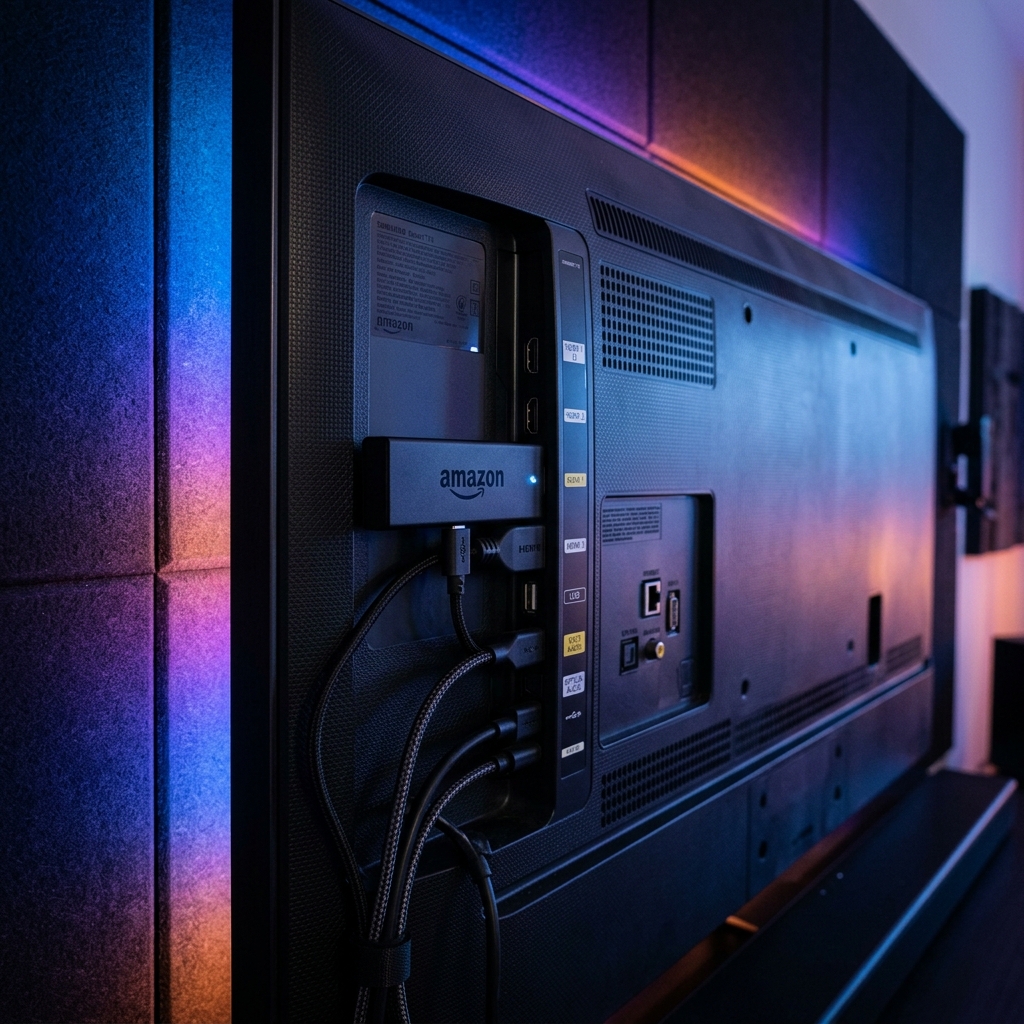
The Fire Stick's portable form factor means you can take your entire entertainment setup anywhere — a hotel room, a friend's house, a vacation rental. Just plug it into any TV's HDMI port, connect to Wi-Fi, and your full EliteVision channel lineup is right there waiting. No contracts, no satellite dishes, no cable boxes. Just a device smaller than a candy bar delivering 4K content from around the globe.
Combined with EliteVision's rock-solid server infrastructure, 99.9% uptime guarantee, and instant activation after signup, the Fire Stick setup described above gets you from zero to watching live TV in under ten minutes.
Frequently Asked Questions
Is it safe to sideload IPTV apps on a Fire Stick?
Yes. Sideloading simply means installing an app from outside the Amazon Appstore. It does not void your warranty or compromise your device's security. Just download apps from trusted sources and always scan APK files with a reputable tool if you are cautious.
Which Fire Stick model is best for IPTV in 2026?
The Fire TV Stick 4K Max offers the best combination of processing power, Wi-Fi 6E connectivity, and 4K HDR support. For budget-conscious buyers, the standard Fire TV Stick 4K handles most IPTV workloads without issue.
Can I use a VPN with IPTV on my Fire Stick?
Absolutely. VPN apps like ExpressVPN and NordVPN are available directly in the Amazon Appstore. Running a VPN adds a layer of privacy to your streaming and can help bypass regional restrictions on certain channels.
How do I update my IPTV app on the Fire Stick?
For sideloaded apps, re-download the latest APK using the Downloader app and install over the existing version — your settings and playlists will be preserved. For Appstore apps, updates are handled automatically or via the My Apps section.