Apple TV 4K Streaming Setup: The Ultimate IPTV Configuration Guide
Published: June 6, 2026 · 9 min read
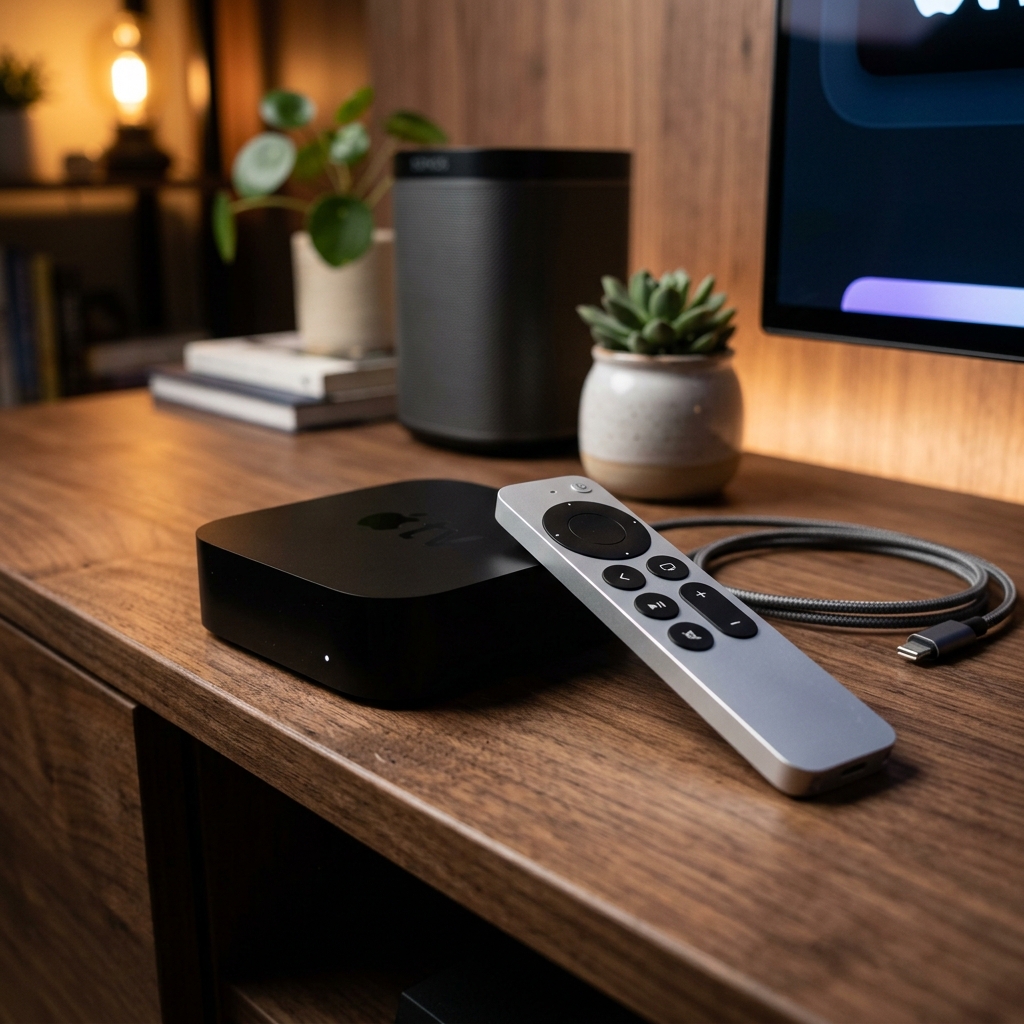
Apple TV 4K has quietly become one of the most capable streaming devices for IPTV enthusiasts. Its A15 Bionic chip handles 4K HDR decoding effortlessly, the tvOS interface is butter-smooth, and the built-in Ethernet port on the latest model eliminates the wireless instability that plagues cheaper alternatives. If you have been wondering whether your Apple TV can deliver a full-featured IPTV experience with thousands of live channels, the answer is a definitive yes — and this guide shows you exactly how to set it up.
Why Apple TV 4K Excels at IPTV Playback
Most streaming devices treat IPTV as an afterthought. Apple TV does not — at least not at the hardware level. The A15 Bionic chip provides desktop-class processing power for video decoding, which means 4K HEVC streams play without a single dropped frame. The device supports Dolby Vision, HDR10+, and Dolby Atmos audio natively, so when your IPTV provider broadcasts in high dynamic range, the Apple TV passes that signal through to your display without stripping any quality.
The latest Apple TV 4K model includes a Gigabit Ethernet port and Wi-Fi 6 — both essential for live streaming. Wired connections deliver the consistent throughput that live sports demand, while Wi-Fi 6 provides a strong wireless fallback with reduced latency compared to previous generations. This hardware foundation makes Apple TV the premium choice for viewers who refuse to compromise on quality.
Best IPTV Apps for Apple TV in 2026
The tvOS App Store offers several IPTV players, though the selection is more curated than Android. Here are the top performers:
1. IPTV Smarters Pro
Available directly on the tvOS App Store, Smarters Pro brings its full feature set to Apple TV — Xtream Codes and M3U support, built-in EPG, favorites management, and a clean category-based interface. It integrates perfectly with EliteVision's credentials and loads the complete channel list within seconds of logging in.
2. GSE Smart IPTV
GSE is a long-standing favorite in the Apple ecosystem. It supports multiple playlist formats including M3U, JSON, and Xtream API. The app features a native tvOS design that feels right at home alongside Netflix and Apple TV+ — no clunky Android port aesthetics here. Its subtitle support and multi-language audio track switching make it ideal for international viewers accessing EliteVision's global channel roster.
3. iPlayTV
Designed exclusively for tvOS, iPlayTV offers the most Apple-native experience of any IPTV player. The interface mirrors Apple's own design language with large, tappable tiles and smooth Siri Remote navigation. It supports M3U playlists and Xtream Codes, handles 4K streams beautifully, and includes a picture-in-picture mode that lets you browse channels while watching a live stream in the corner of your screen.
4. IPTVX
A newer entrant that has gained traction for its modern interface and reliable performance. IPTVX focuses on simplicity — add your EliteVision M3U URL, and the app organizes everything automatically by category. Its standout feature is CloudKit sync, which backs up your favorites and settings to iCloud so they transfer seamlessly if you replace your Apple TV or add a second unit in another room.
Step-by-Step: Setting Up IPTV on Apple TV 4K
The setup process is refreshingly straightforward on tvOS:
- Open the App Store — From the Apple TV home screen, navigate to the App Store and search for your preferred IPTV player (IPTV Smarters Pro, GSE Smart IPTV, iPlayTV, or IPTVX).
- Install the app — Download and install. No sideloading required — all recommended apps are officially available on the tvOS App Store.
- Launch and add your subscription — Open the app and select "Add Playlist" or "Login." Enter your EliteVision Xtream Codes credentials (server URL, username, password) or paste your M3U playlist URL.
- Wait for the EPG to sync — The Electronic Program Guide typically loads within 15–30 seconds. Once complete, you will see a full schedule grid showing what is currently airing and upcoming programs across all channels.
- Start watching — Browse by category, search for a specific channel, or scroll through the EPG to find live content. Tap any channel to begin streaming instantly.
Optimizing Apple TV Settings for IPTV
Apple TV works well out of the box, but these adjustments extract peak performance for live streaming:
- Match Content → Dynamic Range: On — Found in Settings → Video and Audio. This tells the Apple TV to switch between SDR and HDR automatically based on what the stream supports, avoiding washed-out colors on SDR channels.
- Match Content → Frame Rate: On — Prevents judder by matching the Apple TV's output frame rate to the stream's native rate (25fps for European broadcasts, 30fps for North American content).
- HDMI Output → 4K HDR (60Hz) — Ensure this is set to the highest resolution your TV supports.
- Use Ethernet when possible — The latest Apple TV 4K has a built-in Gigabit Ethernet port. Plug in a Cat6 cable and your connection becomes rock-solid, completely immune to the interference and congestion that Wi-Fi networks experience.
- Reduce motion — Settings → Accessibility → Motion → Reduce Motion. This makes interface transitions snappier, which is noticeable when rapidly switching between channels during live events.
Siri Remote Tips for IPTV Navigation
The Siri Remote's touch-sensitive clickpad takes some getting used to for IPTV, but once mastered, it is surprisingly efficient:
- Swipe left/right on the clickpad to scrub through the EPG timeline quickly.
- Press and hold the clickpad center on a channel to add it to your favorites in most IPTV apps.
- Double-tap the TV button to switch between your IPTV app and other apps instantly — handy for checking scores on a sports app while watching a match.
- Use Siri voice search to jump to specific channels by name in apps that support it.
Apple TV vs Other Streaming Devices for IPTV
Compared to Fire Sticks and generic Android boxes, Apple TV costs more upfront but delivers tangible benefits for IPTV users. The A15 chip eliminates buffering caused by underpowered processors struggling with 4K HEVC decoding — a common issue on budget devices. The aluminum enclosure acts as a passive heatsink, preventing the thermal throttling that causes plastic-bodied streamers to stutter during extended viewing sessions. And tvOS receives regular security updates, keeping your device protected without you having to think about it.
When paired with EliteVision's server infrastructure — globally distributed CDN nodes, anti-buffering technology, and 99.9% uptime — the Apple TV 4K delivers what is arguably the most refined IPTV experience available on any consumer device.
Frequently Asked Questions
Can I use IPTV on Apple TV without jailbreaking?
Yes. All recommended IPTV apps — IPTV Smarters Pro, GSE Smart IPTV, iPlayTV, and IPTVX — are available directly on the tvOS App Store. No jailbreaking or sideloading is necessary.
Does Apple TV support 4K IPTV streaming?
Absolutely. The Apple TV 4K handles 4K HEVC and VP9 decoding natively with its A15 Bionic chip. Combined with Dolby Vision and HDR10+ support, it delivers the highest quality IPTV playback of any mainstream streaming device.
Which IPTV app works best on Apple TV?
IPTV Smarters Pro offers the best all-around experience with full EPG and Xtream Codes support. iPlayTV provides the most native tvOS feel. GSE Smart IPTV excels for international viewers who need multi-language audio tracks.
Can I use EliteVision on multiple Apple TVs in my home?
Yes. EliteVision supports multiple simultaneous connections depending on your plan. You can set up IPTV on Apple TVs in different rooms and stream different channels on each one at the same time.