Ultimate 4K & 8K World Cup 2026 Setup: Picture-Perfect Football on Every Screen
Published: June 6, 2026 · 9 min read
The FIFA World Cup 2026 will be the most visually spectacular tournament ever broadcast. FIFA has confirmed native 4K UHD production for all 104 matches, with select games — including the semi-finals and final — available in 8K resolution. But capturing stunning footage is only half the equation. If your display settings, internet connection, and streaming setup are not properly configured, you will see a fraction of the quality that is actually being transmitted. This guide walks you through every setting and specification needed to extract the absolute maximum picture quality from every match.
4K vs. 8K: What Is the Real Difference?
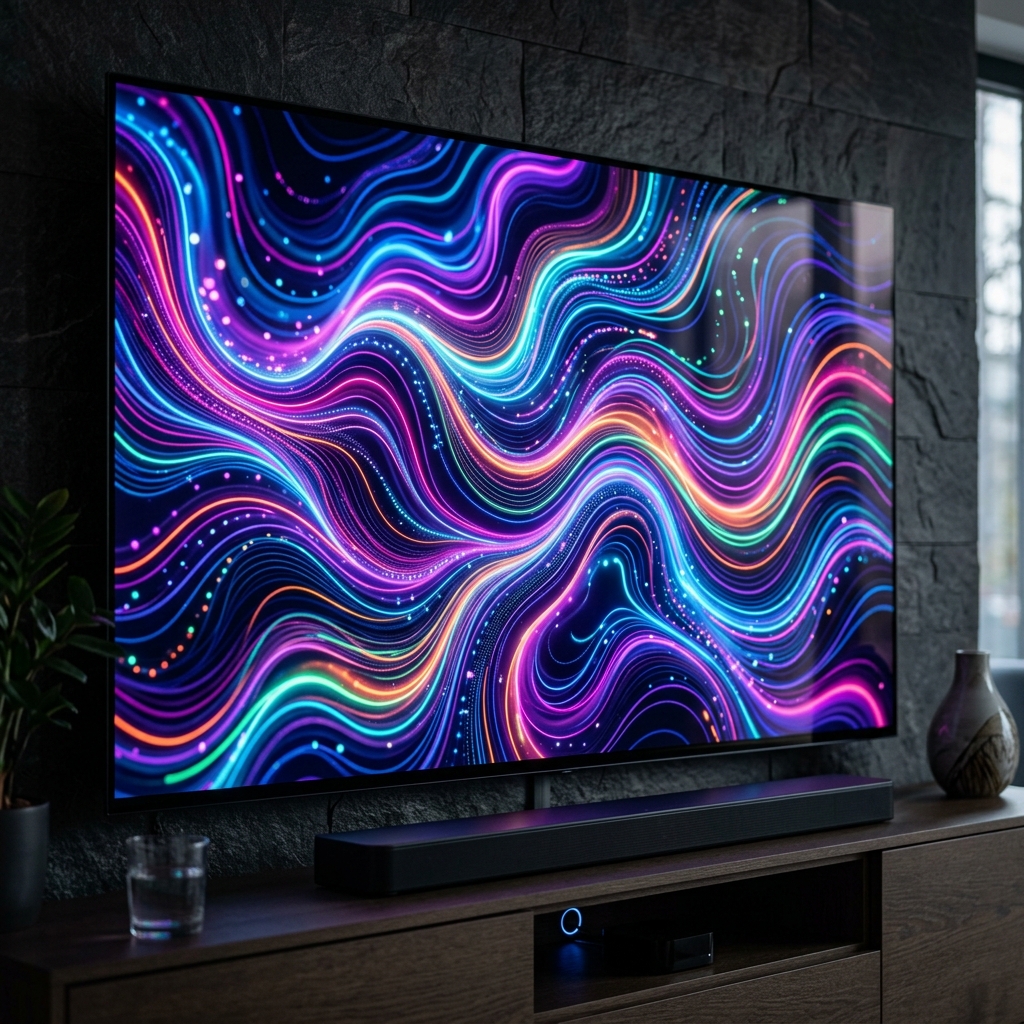
4K UHD (3840 × 2160 pixels) delivers four times the pixel density of standard 1080p Full HD. On a 55-inch or larger screen, the difference is immediately visible: player faces are sharp enough to read expressions, the texture of the pitch is distinct, and fine details like jersey patterns and ball spin become clearly visible.
8K (7680 × 4320 pixels) quadruples 4K, packing over 33 million pixels into the image. At this resolution, you could press your face against a 75-inch screen and still not see individual pixels. For football, 8K makes sweeping wide-angle stadium shots look photorealistic — you can pick out individual fans in the crowd, read advertising boards on the far side, and follow the ball's trajectory with absolute clarity even during long aerial passes.
The practical consideration: 8K TVs remain expensive and 8K content requires approximately 80–100 Mbps of sustained bandwidth. For most viewers, 4K at 25–35 Mbps delivers a transformative upgrade over HD without demanding top-tier hardware or internet speeds.
Choosing the Right Display Technology
Not all 4K panels are created equal. The display technology matters enormously for live sports:
OLED (LG, Sony, Vizio)
OLED panels produce perfect blacks because each pixel emits its own light — there is no backlight bleeding. For World Cup matches played under stadium lights at night, OLED makes the contrast between the brightly lit pitch and the dark stands look absolutely breathtaking. The near-instant pixel response time (under 1ms) also eliminates motion blur during fast-paced action. If budget allows, OLED is the gold standard for football viewing.
QLED / Mini-LED (Samsung, TCL, Hisense)
QLED and Mini-LED panels use quantum dots and localized dimming zones to achieve excellent brightness and vibrant colors. They handle brightly lit daytime matches superbly, and Samsung's top-tier models with 2,000+ nit peak brightness make HDR content pop. These panels are available at lower price points than OLED while still delivering exceptional 4K sports performance.
Standard LED/LCD
Budget-friendly LED TVs display 4K resolution but typically lack the local dimming, color accuracy, and motion handling of OLED and QLED panels. If you are working within a tight budget, a standard 4K LED TV still provides a massive upgrade over 1080p — the resolution gain alone transforms the viewing experience.
Critical TV Settings for Football
Out of the box, most TVs apply picture processing that actually degrades live sports quality. Adjust these settings before the first match:
1. Enable Sports Mode or Game Mode
Sports Mode optimizes motion handling, color saturation, and audio equalization for live events. Game Mode reduces input lag to a minimum. Either mode disables heavy post-processing that can introduce artifacts and delay. On Samsung TVs, this is labeled "Sports Mode." On LG OLED, use "Game Optimizer" or "Sports" under AI Picture Pro.
2. Disable Motion Smoothing (Soap Opera Effect)
Features called "TruMotion" (LG), "Auto Motion Plus" (Samsung), or "Motionflow" (Sony) add artificial frames between real ones. While this can make some content look smoother, it creates an unnatural, hyper-smooth "soap opera effect" on live broadcasts and can introduce visual artifacts during rapid camera pans across the pitch. Turn this off.
3. Enable HDR
If your TV supports HDR10 or Dolby Vision, make sure it is enabled in your display settings. HDR expands the color gamut and dynamic range, making the green of the pitch richer, the sky more vibrant, and stadium lighting more realistic. Your IPTV player must also support HDR passthrough — EliteVision's 4K channels deliver HDR metadata natively when the source broadcast includes it.
4. Set Backlight to Maximum (for HDR content)
HDR content needs high peak brightness to display correctly. Set your TV's backlight to maximum when watching HDR streams. Contrast should be set to its highest or near-highest level, while brightness (which actually controls black level) should remain at 50 or its default.
5. Color Temperature: Warm
Set color temperature to "Warm" or "Warm 2." This produces the most accurate colors as defined by the BT.2020 standard used in 4K broadcasts. The default "Cool" or "Standard" settings add a blue tint that makes the image look artificially bright but less natural.
Internet Bandwidth Requirements
Picture quality is directly tied to bandwidth. Here is what each resolution tier requires:
- 720p HD: 5 Mbps
- 1080p Full HD: 10 Mbps
- 4K UHD: 25 Mbps
- 4K UHD with HDR: 35 Mbps
- 8K UHD: 80–100 Mbps
These are per-stream requirements. If you are running two 4K streams on different devices simultaneously (common during the group stage), you need 50+ Mbps dedicated to streaming alone. Always test your actual speed — not your plan's advertised speed — using fast.com before the tournament begins.
HDMI Cable Matters More Than You Think
An often-overlooked detail: the HDMI cable connecting your streaming device to your TV must support the required bandwidth. For 4K at 60fps with HDR, you need an HDMI 2.0 cable at minimum. For 8K or 4K at 120fps, you need HDMI 2.1. Look for cables labeled "Ultra High Speed" or "48Gbps." Using an old HDMI 1.4 cable will silently cap your output at 1080p, and your TV will not warn you.
Audio Setup: Hear the Stadium
Picture quality gets all the attention, but audio is what makes a World Cup match feel immersive. The roar of 80,000 fans, the crack of a struck ball, the referee's whistle — these sounds create atmosphere that flat TV speakers cannot reproduce.
- Soundbar (minimum): A 2.1 soundbar with a subwoofer dramatically improves dialogue clarity (commentary) and bass response (crowd noise).
- Surround sound (recommended): A 5.1 or Dolby Atmos system places crowd ambience around you, creating the sensation of being inside the stadium. Many World Cup broadcasts are mixed in 5.1 surround.
- Audio setting: Switch your TV or soundbar to "Stadium" or "Sports" sound mode if available. These profiles boost crowd frequencies and reduce commentary compression.
EliteVision: Native 4K Streams Built for Football
The highest-quality TV and the fastest internet mean nothing if your streaming provider delivers compressed, downscaled feeds. EliteVision transmits sports channels in native 4K resolution with HDR metadata intact — not upscaled 1080p disguised as 4K. The difference is visible from the first frame: textures are crisp, motion is fluid, and colors match what the cameras actually captured.
Combined with a globally distributed CDN that maintains consistent bitrates even during peak viewership, EliteVision ensures your carefully calibrated display receives the highest-quality signal possible for every one of the 104 World Cup matches.
Frequently Asked Questions
Is the World Cup 2026 broadcast in 4K?
Yes. FIFA has confirmed native 4K UHD production for all 104 matches. Select knockout stage matches and the final will also be available in 8K resolution through partner broadcasters.
Do I need an 8K TV to watch the World Cup?
No. A 4K UHD TV provides a spectacular viewing experience for the entire tournament. 8K offers marginal improvements visible mainly on very large screens (75 inches and above) and requires significantly higher bandwidth (80–100 Mbps). 4K at 25–35 Mbps is the sweet spot for most viewers.
Should I turn off motion smoothing for football?
Absolutely. Motion smoothing (TruMotion, Auto Motion Plus, Motionflow) creates unnatural-looking footage and can introduce visual artifacts during fast camera pans common in football. Disable it and use your TV's Sports Mode or Game Mode instead.
What HDMI cable do I need for 4K streaming?
You need at minimum an HDMI 2.0 cable for 4K at 60fps with HDR. For 8K content or 4K at 120fps, an HDMI 2.1 "Ultra High Speed" cable is required. Using an older cable will silently limit your output to 1080p.